
You can connect Claude or ChatGPT to your Riverd account and ask it about your practice, like "When am I free on Thursday?" or "Who's coming in tomorrow?". If you allow it, the assistant can also make changes for you, like booking or moving a session, adding a client or blocking time off.
Connecting an assistant is on every plan: Brook (free), River and Fjord. You need your own Claude or ChatGPT account. Riverd emails you every time an assistant is connected, and you can disconnect it at any time.
What you need
- Your Claude or ChatGPT account, open in your browser or app.
- Riverd's address for assistants. Go to Settings > Assistants and select Copy address under Address to paste. Claude and ChatGPT may call it the server URL.
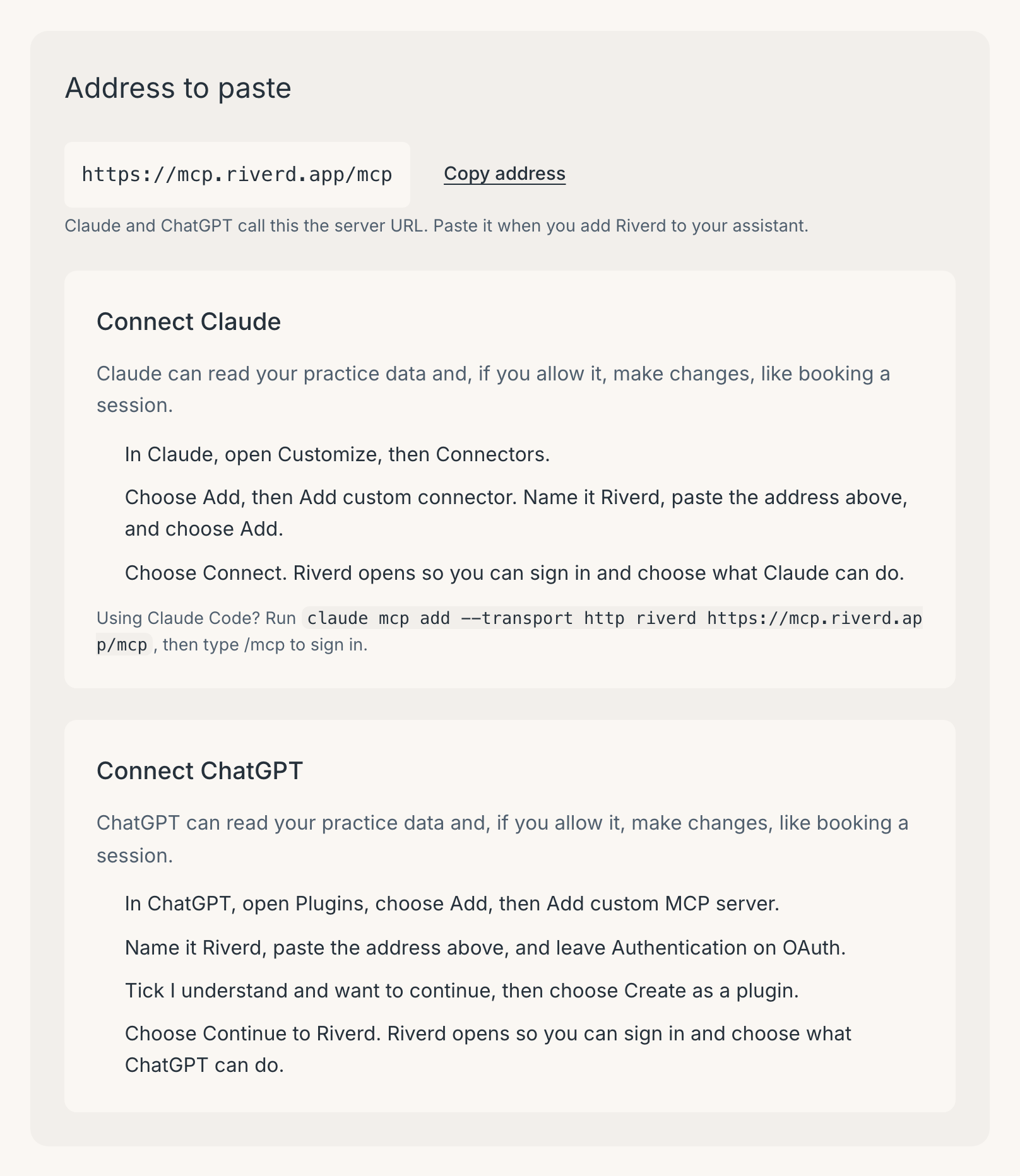
You start the connection in the assistant, then Riverd opens so you can sign in and choose what the assistant can do.
Connect Claude
- Go to Settings > Assistants and select Copy address.
- In Claude, open Customize, then Connectors.
- Choose Add, then Add custom connector. Name it Riverd, paste the address, and choose Add.
- Choose Connect. Riverd opens in your browser.
- Sign in to Riverd if it asks, choose what Claude can do (see "Choose what the assistant can do" below), and select Allow.
You go back to Claude, and Riverd emails you that it was connected.
Claude can read your practice data and, if you allow it, make changes, like booking a session.
Using Claude Code? Run claude mcp add --transport http riverd https://mcp.riverd.app/mcp, then type /mcp to sign in.
Connect ChatGPT
- Go to Settings > Assistants and select Copy address.
- In ChatGPT, open Plugins and choose Add, then Add custom MCP server.
- Name it Riverd and paste the address. Leave Authentication on OAuth.
- Tick I understand and want to continue, then choose Create as a plugin.
- Choose Continue to Riverd. Riverd opens in your browser.
- Sign in to Riverd if it asks, choose what ChatGPT can do, and select Allow.
You go back to ChatGPT, and Riverd emails you that it was connected.
ChatGPT can read your practice data and, if you allow it, make changes, like booking a session. ChatGPT may ask "Allow ChatGPT to use Riverd?" before a change. That prompt is ChatGPT's own, so check what it says before you allow it.
For now, Claude and ChatGPT are the assistants that can connect to Riverd.
Choose what the assistant can do
Riverd opens the Allow access page. At the top it shows which assistant is asking, by its web address: claude.ai for Claude, chatgpt.com for ChatGPT. Only allow it if you just started connecting an assistant yourself. If you didn't, choose Deny.
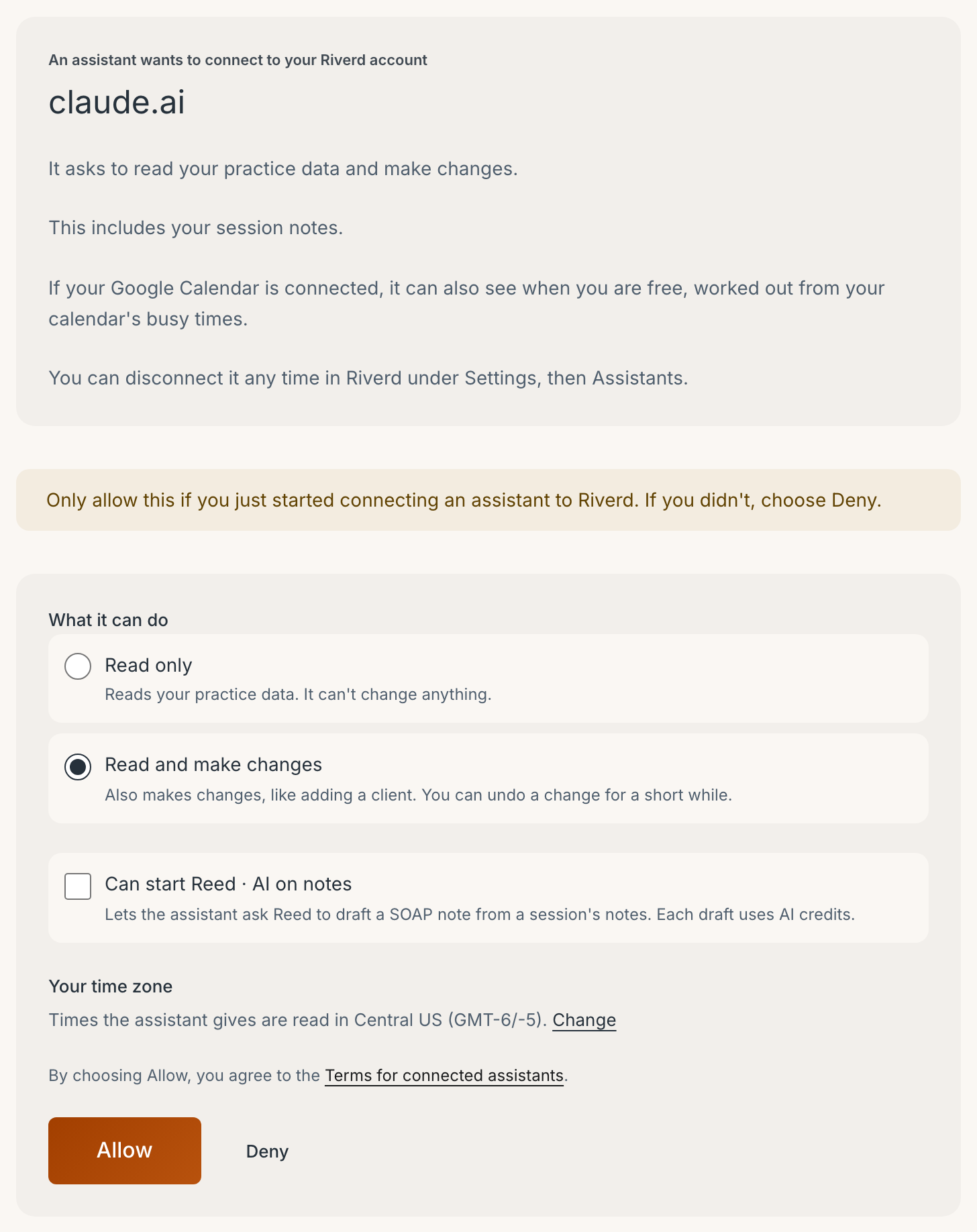
Then choose:
- What it can do. Read only lets the assistant look things up and change nothing. Read and make changes also lets it make the changes listed under "What the assistant can change". Read and make changes is chosen at first, so pick Read only if you only want answers.
- Can start Reed · AI on notes. It's off at first. Leave it off unless you want the assistant to ask Reed for SOAP drafts. See "Reed and your notes" below.
- Your time zone. When you tell the assistant a time like 2pm, Riverd reads it in this time zone. Check it, and select Change if it's wrong. If Riverd doesn't have your time zone yet, it suggests the one your device uses: tick This is my time zone or pick the right one. Allowing also saves it as your time zone in Settings.
By choosing Allow, you agree to the Terms for connected assistants.
If you connect the same assistant again later, the new connection replaces the old one.
Confirm it's you
If you haven't signed in to Riverd in the last 10 minutes, the page asks you to confirm it's you first. Select Email me a sign-in link, then open the link on the same device. You come back to the Allow access page to finish.
What the assistant can see
Every connected assistant, Read only included, can see:
- Your schedule and bookings.
- Your clients: names, email addresses, phone numbers, dates of birth and tags.
- Your services.
- Your time off.
- When you're free to book.
- The names of your intake forms.
- Your session notes.
It can't see your clients' intake answers.
If your Google Calendar is connected, the assistant can also see when you're free, worked out from your calendar's busy times. When it tries to book a time that clashes with your calendar, Riverd tells it when that busy time starts and ends. It never sees your events' titles or any other details.
What the assistant can change
With Read and make changes, the assistant can:
- Book a session, for an existing client or someone new.
- Move a session to a new time.
- Cancel a session, or decline a request that's waiting for you.
- Log a session that already happened.
- Add a client.
- Confirm a client's email address or phone number.
- Block time off, or remove it.
- Write a session's notes.
- Send an intake form to a session's client.
- Undo one of its own changes.
Each change happens in Riverd right away. Your assistant may ask you to approve a change before it makes it.
The assistant can't cancel a session that has started or that you've been paid for, and it can't change payments, refunds, your plan, your API keys or your connected assistants. It can book or move a session up to 24 months ahead. To book further out, book it in Riverd yourself.
Intake forms are for practices in the US, so the assistant can send one only if your practice is in the US. If the assistant says to confirm your practice's country, confirm it in Riverd, then ask again.
Overlapping times
If the assistant tries to book or move a session to a time that overlaps another session, a Google Calendar busy time or your time off, Riverd refuses it and tells the assistant what's in the way. If you want the overlap, tell the assistant to book it anyway.
Time off
Blocking time off leaves the sessions already booked in that time where they are. Riverd tells the assistant which sessions fall inside the block, so it can ask you what to do with them.
Session notes
The assistant adds its text after the notes already there. It replaces a session's notes only if you ask it to. Writing notes sends nothing to your client and uses no AI credits.
New clients' email addresses and phone numbers
When the assistant adds a client or books someone new, Riverd sends that client nothing until their email address and phone number are confirmed.
The assistant should read them back to you first. Tell it they're right only after you've checked them, the same check you make when you type them in yourself. Then Riverd contacts that client as usual, starting with the booking notice. You can also confirm them later on the client's page with Yes, it's right.
If a booking notice is due while the details still aren't confirmed, Riverd skips that notice and doesn't send it later, so let the client know about the session yourself.
When your client hears about a change
When the assistant's change means your client gets an email or text, like a booking, move or cancellation notice or an intake form, Riverd holds it for the 5 minutes you can undo the change. If you undo it in that time, your client never gets it.
A booking, move or cancellation notice for a session that starts within those 5 minutes goes out when the session starts. Appointment reminders wait too, while the change can still be undone.
Undo a change
Every change an assistant makes can be undone for a while afterwards:
- Bookings, moves, cancellations, logged sessions, intake forms, new clients and confirmed contact details: 5 minutes.
- Time off and session notes: 24 hours.
Ask the assistant to undo it, or undo it yourself:
- Go to Settings > Assistants.
- Under Changes you can still undo, find the change. By shows which assistant made it, like "claude.ai (assistant)".
- Select Undo.
The same list is on Settings > API keys, so you can undo an assistant's change from either page, even after you disconnect it.
Undo is refused if the same thing was changed again since, like a client you edited in Riverd afterwards. Once the time is up, change it back in Riverd yourself, the way you usually would.
If your client had already heard about the change, the line reads "Undone. Your client had already heard about this change, so let them know."
The emails Riverd sends you
- Every time an assistant is connected: which assistant, what it can do, and whether it can start Reed. If you didn't connect it, disconnect it right away.
- The first time each assistant makes a change: what it did and when, like "booked a session". You get this once per connection.
- The first time an assistant reads a list of your session notes.
- If a sign-in code for your assistant ends up in a web address, Riverd disconnects the assistant and emails you. Connect it again from the assistant.
See what an assistant did
Each assistant on Settings > Assistants shows what it can do, whether it can start Reed, when it was connected and when it was last used. Select Show activity to see its recent requests, and Show AI runs to see each SOAP draft it asked Reed for.
If you connected Claude in both the Claude app and Claude Code, you'll see two claude.ai rows. The Claude Code one says "Through an app on the computer where it was allowed".
Reed and your notes
With Can start Reed · AI on notes ticked, the assistant can ask Reed, the AI in Riverd, to draft a SOAP note from one session's notes. Reed reads that session's notes and gives the draft to the assistant. Nothing is saved in Riverd. To keep the draft, ask the assistant to save it to the session's notes, which needs Read and make changes.
Each draft uses your AI credits, the same as drafting a SOAP note in Riverd. When your practice is out of credits, the draft is refused. Notes longer than 10,000 characters are refused as well. While Reed is writing a draft for a session, the assistant can't start another one for the same session.
To turn it on, you tick a second box on the Allow access page to confirm the assistant can have Reed read a session's notes and give it the draft.
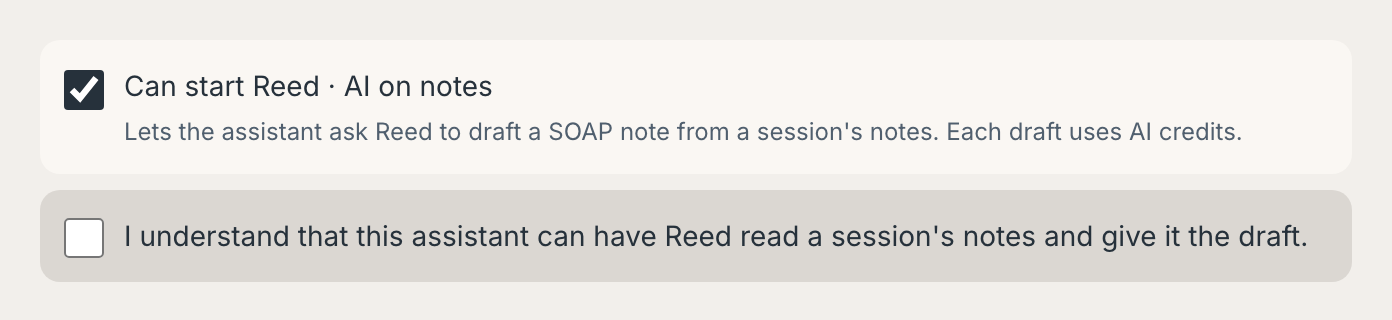
You can turn it off for an assistant at any time with Turn off AI on notes on Settings > Assistants, without disconnecting. To turn it back on, connect the assistant again and tick it on the Allow access page.
Disconnect an assistant
- Go to Settings > Assistants.
- Select Disconnect next to the assistant, and confirm.
The assistant stops reading your practice data and making changes right away. Changes it already made stay, and you can still undo recent ones under Changes you can still undo. To use it again, connect it again from the assistant.
An assistant is also disconnected:
- After 90 days without being used. Riverd doesn't email you about this. Connect it again from the assistant when you want it back.
- When you select Sign out everywhere, which also signs you out on every device.
- When your email address, password or phone number changes.
- When you connect the same assistant again, which replaces the old connection.
A disconnected assistant stays on the page under Disconnected in the last 30 days, with the reason.
If you didn't connect it
- Select Disconnect next to the assistant on Settings > Assistants. If you think someone has your Riverd login too, select Sign out everywhere instead, then sign in again.
- Under Changes you can still undo, undo anything you don't recognize.
- Look through Show activity for older changes you don't recognize, and fix them in Riverd.
- Tell us at hello@riverd.app.
Your clients' information and the assistant's maker
Claude is made by Anthropic and ChatGPT by OpenAI. What the assistant receives from Riverd is handled by its maker under the maker's own terms and the settings you choose with them, which may let the maker keep that information or use it to improve its AI. Check your assistant's settings to see whether it uses your chats to train its models.
Riverd's promises about its own AI, Reed, cover Reed only. They don't cover an assistant you connect, whichever company makes it. Riverd can't see, change or delete what an assistant has already received, including when a client asks Riverd to delete their information. What the assistant keeps is up to you and its maker.
If a law that applies to your practice, such as HIPAA, requires an agreement with the assistant's maker before it receives your clients' health information, you need that agreement before you connect the assistant. Riverd can't make it for you.
The full rules are in AI Assistants You Connect in the Terms of Service and in the Privacy Policy.
Limits
An assistant has the same limits as an API key, counted for each assistant and for all your keys and assistants together. See "Limits" in Using API Keys. When an assistant reaches a limit, Riverd tells it how long to wait.
Troubleshooting
- "Confirm it's you." You haven't signed in to Riverd in the last 10 minutes. Select Email me a sign-in link and open it on the same device.
- "This link can't be used." The Allow access page was opened in a different browser or device from the one where you started, or the request is too old. Start the connection again from the assistant, and open any sign-in link on the same device.
- "This request has expired." More than 30 minutes went by after you started. Start again from the assistant.
- "You already answered this request." To connect again, start from the assistant.
- "This assistant can't connect to Riverd yet." For now, Riverd connects to Claude and ChatGPT only.
- "Your plan doesn't include connecting an assistant." Your account is a directory listing. Select See plans to move to Brook, which is free.
- "Confirm your email address first." Confirm the email address on your Riverd account, then start again from the assistant.
- You can't find Assistants in Settings. It comes after API keys in Settings when connecting assistants is available.
- You can't find where to add a connector in Claude or ChatGPT. The menus change from time to time, and what you can add can depend on your Claude or ChatGPT plan. Check the assistant's own help pages.
- The assistant answers without your Riverd information. In Claude and ChatGPT you can turn each connector on or off for a chat. Check that Riverd is turned on for that chat.
- The assistant says it can't make changes. It was connected with Read only. Connect it again from the assistant and choose Read and make changes. The new connection replaces the old one.
- The assistant asks you to sign in or connect again. It was disconnected: after 90 days unused, after Sign out everywhere, after a change to your email address, password or phone number, or because you disconnected it. Connect it again from the assistant.
- A time is off by some hours. Check your time zone in Settings. Riverd reads the times an assistant gives in that time zone.